Admin Panel
Section 1 Admin Panel Introduction
Every time you login, you will have a blank admin panel, consider this as a blank canvas ready for you to paint on.
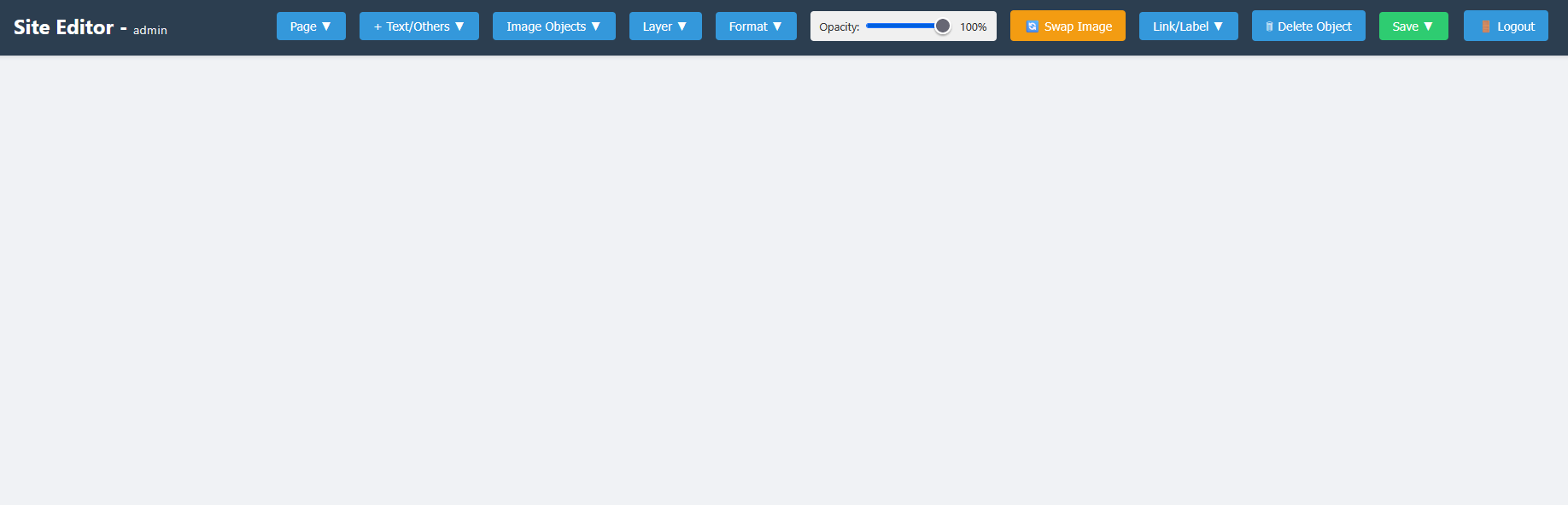
You are started off with a basic home page so click on page in the menu.
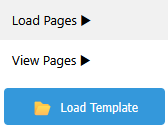
Click on load page - this will show you a list of the pages you have created.
Select "home" (as this is your only page for now).
The home page will then load into your admin panel.
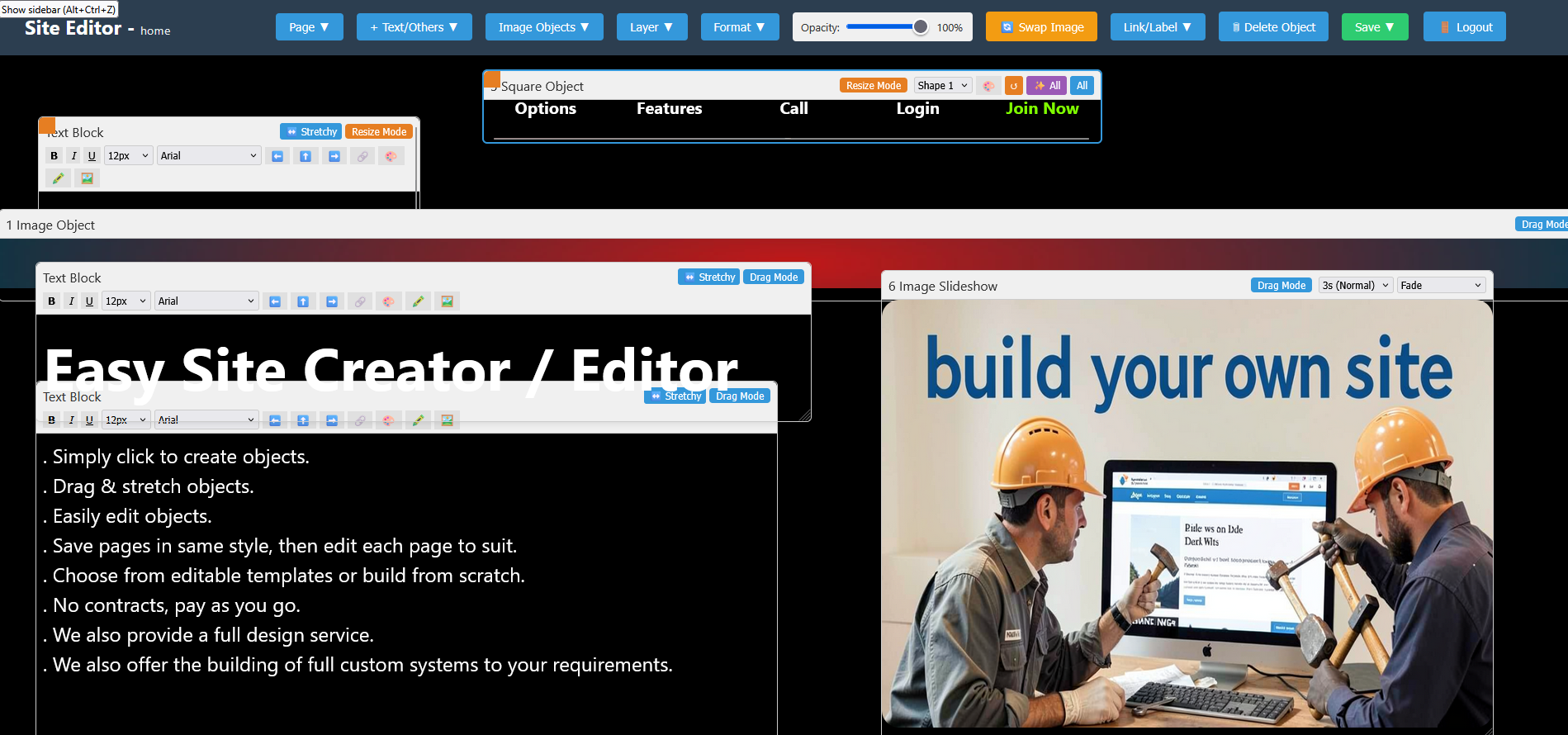
Below is an example of my own home page in the admin panel.
You will see all the different objects I used to create my page..
Section 2 Loading Templates
You also have access to ready made templates.
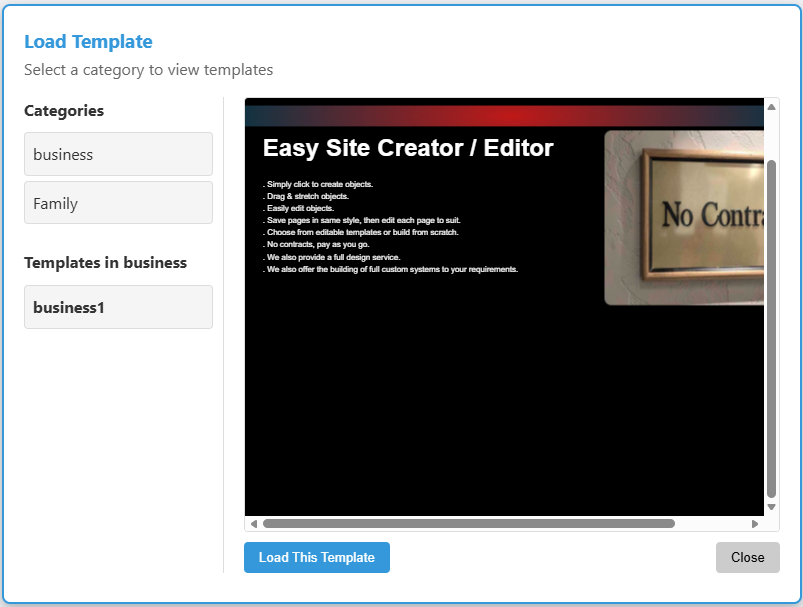
Click on the Load Template button under Pages menu on the top menu bar.

This will open the template panel as shown below.
Click on a category and this will show a list of templates available in that category.
When you click to choose a template, you will see a visual representation of the template in the middle panel.
If you click on the blue Load Template button at the bottom, this will then load the one you are looking at as your new site pages.
Section 3 Creating/Saving Pages
Load your home page into the admin panel (as explained above).
Make any changes to the home page then go to Save on the menu.
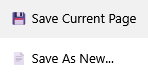
Select "Save Current Page" and this will save changes you made to the loaded page "home".
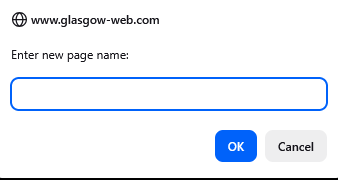
Select save as new, then type in the name of the new page. This will add another page to your website and to your panel for loading /editing.
Section 4 Rename/Delete Pages
Click on Page in the menu bar.
Two choices, Rename or Delete page. these do exaclty what they say on the tin.
Rename lets you enter a new name for the page loaded in admin and delete deletes it.
Section 5 Add Background To Pages
You can change the background colour of pages or add an image as background.
Click on Page in the menu bar.
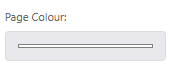
Find the section shown in the image below and click on the bar to the right of Page Colour.
This will open the browser's colour picker.
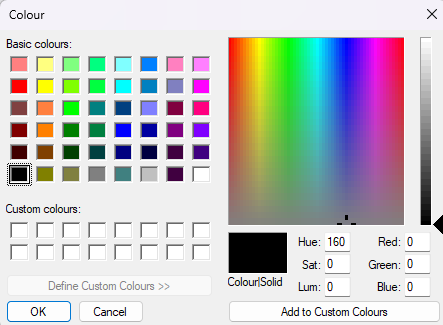
Firefox browser uses a different colour picker from chrome and edge.
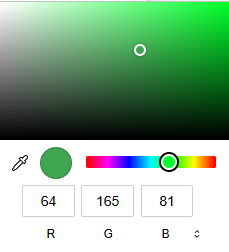
Firefox colour picker is the image on left and chrome etc on right.
Personally I find firefox colour picker easier to use: all you do is click a colour, use slider on right to fine tune the colour shade then click ok.
For Chrome etc, use the slider at bottom to select base colour, then drag the little circle around the box to fine tune colour shade.
After selecting like this in chrome etc, you then have to click on the page away from the colour selector, then the colour will be applied.
Chrome etc has an extra little tool (looks like an eye dropper or something), click on that then you can move it over any colour you can see anywhere on your screen, then click to use it.
Use the colour picker to select a colour for the bakground of your page.
You can use an image as the Background for your page.
Images for page backgrounds are small images with patterns that can be repeated across the page.
They are like rolls of wallpaper where you paste the same pattern on your wall over and over.
Depending on the image pattern, they can be pasted on your wall in different ways.
Click on Page in the menu bar.
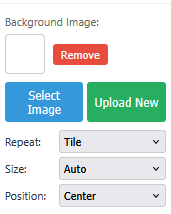
Find the section shown in the image below for Background Image.
Click on select image and a panel will appear with a list of some we provided.
You can use an image as the Background for your page.
Images for page backgrounds are small images with patterns that can be repeated across the page.
They are like rolls of wallpaper where you paste the same pattern on your wall over and over.
Depending on the image pattern, they can be pasted on your wall in different ways.
Click on Page in the menu bar.
Find the section shown in the image below for Background Image.
Click on select image and you will find a list of some we provided.
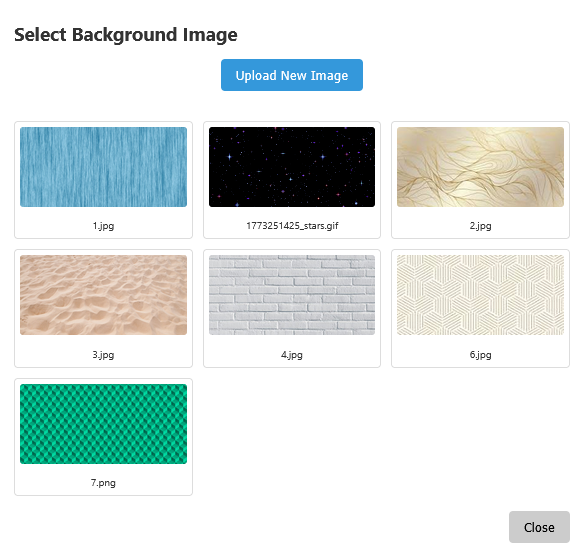
Choose number 3 (the sand one).
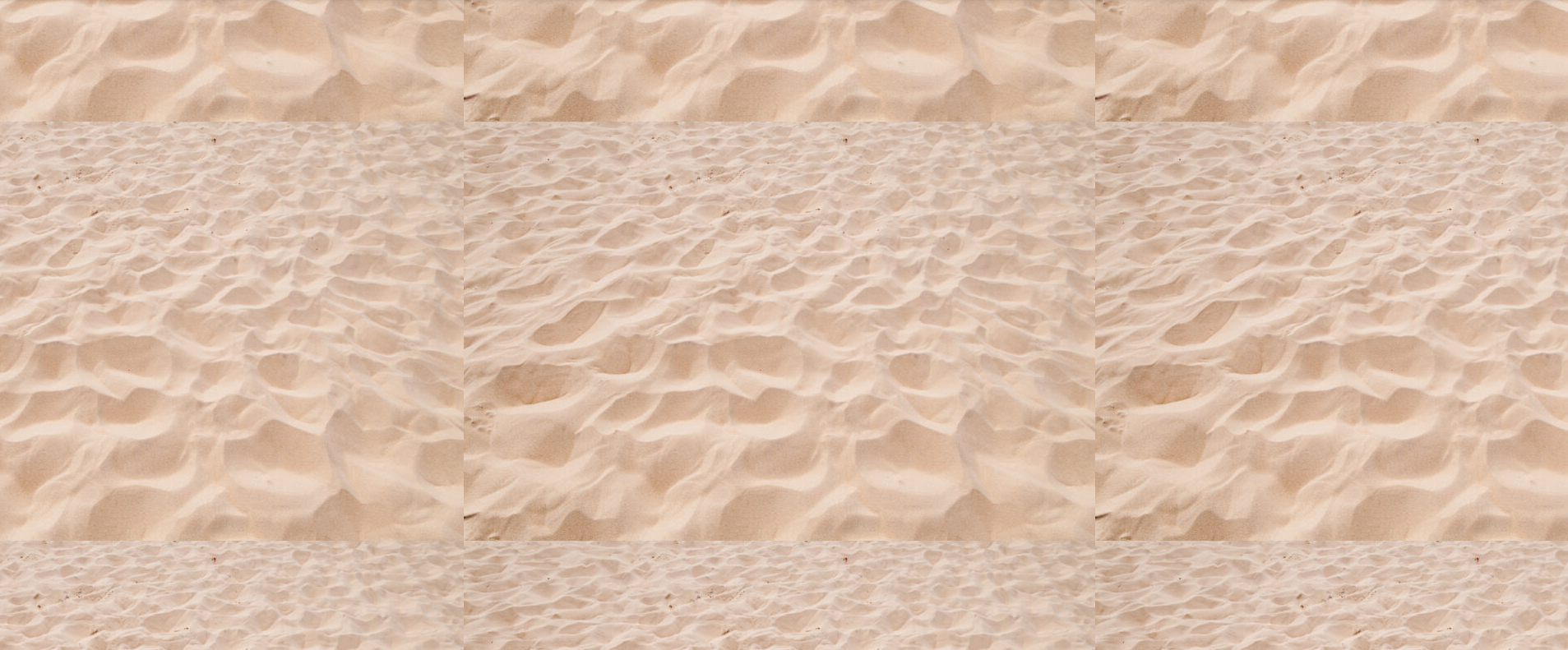
You will now see a mess on your screen like the image below.
Some images will look just fine as soon as you load them but others like the sand one need to be told how to behave on the screen.
To get a nice pattern, choose the settings as shown below.
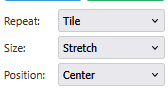
You will now have a nice sand pattern as below.

Section 6 Viewing Pages
We already looked at loading pages and saving pages now for viewing pages.
On the main menu bar, click on Pages, this opens dropdown menu.
From here you select view pages then select the page you wish to view.
This will open up the page you selected in a new tab to let you see exactly what visitors to the page will see.